To convert a JPG to an EXP file, you cannot simply change the file extension or use a standard image converter. Because a JPG is made of flat pixels and an EXP is a pure machine-code file, you must use specialized embroidery digitizing software. This software translates the visual image into specific stitch coordinates, needle penetrations, and trim commands required by commercial Melco and Bernina embroidery machines.
Understanding the Formats: Pixels vs. Stitches

When users search for a jpg to exp converter, they often misunderstand how embroidery machines read data.
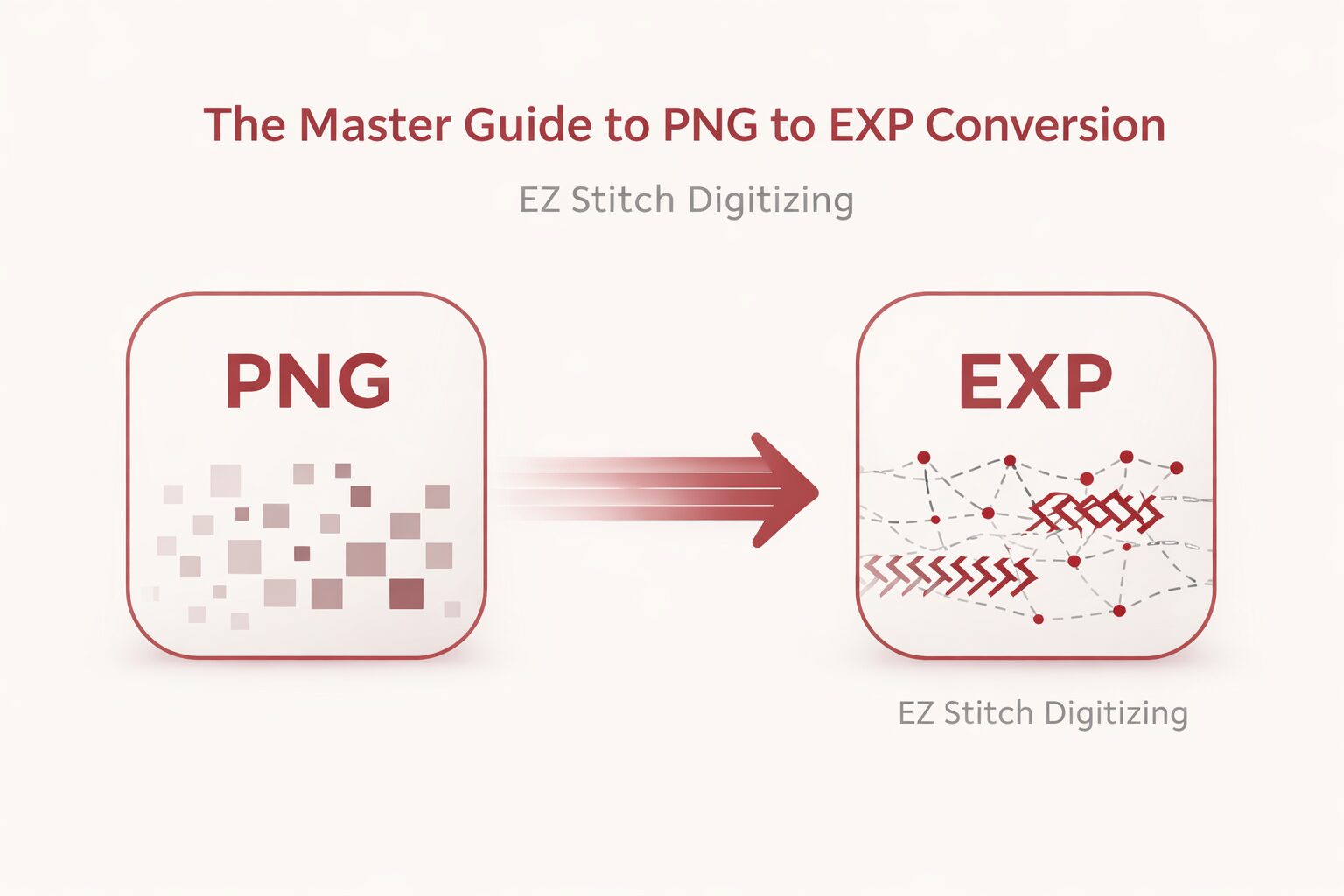
A JPG (or JPEG) is a raster image. It is essentially a grid of colored pixels. It tells a computer screen how to display a picture, but it contains zero physical dimensions or mechanical instructions.
An EXP file is the “universal commercial language” of embroidery. It is a binary machine-code file that dictates precise X and Y coordinates for the embroidery hoop, telling the machine exactly when to drop the needle, jump, or trim the thread. Because of this massive technical difference, converting a flat image into machine instructions requires the art and science of digitizing.
The Process: How to Convert JPG to EXP for Embroidery
To successfully convert jpg to exp, you need to guide the artwork through a transformation process. Here is the professional workflow:
Import the Artwork: Load your JPG or JPEG image into your chosen digitizing software.
Artwork Optimization: Clean up the image. High-quality digitizing requires crisp lines. If your image is low resolution, you may need to learn how to make a exp file from a cleaner vector format first.
Pathing and Stitch Assignment: This is where the actual conversion happens. The digitizer assigns stitch types (satin stitches for borders, tatami fills for wide areas, and run stitches for details) over the image shapes.
Setting Machine Parameters: Adjust underlay, pull compensation, and density to ensure the fabric does not pucker.
Exporting the Machine Code: Finally, you generate the machine data and save the project as an EXP file.
Auto-Digitizing vs. Manual Conversion
Many beginners look for a convert jpg to exp file software that does the job instantly. Most modern digitizing programs feature an “auto-digitize” tool.
While auto-digitizing acts like a quick jpeg to exp converter, it is notoriously unreliable for complex logos. It often misinterprets shadows in a JPG as extra colors or creates highly inefficient stitch paths, leading to thread breaks and a poor final sew-out. For commercial-grade results, manually defining the stitch paths using professional EXP Software is always the superior choice.
(Note: The principles of digitizing remain the same regardless of the image format. If you are starting with a different file type, the logic used in png to exp conversions applies here as well.)
Can You Convert JPG to EXP Embroidery File Free?
If you are searching to convert jpg to exp embroidery file free, you have a few limited options.
Free open-source software, like Ink/Stitch (an extension for Inkscape), allows you to import a JPG, trace it into a vector, and assign stitch parameters to export as an EXP. However, there is a steep learning curve. While the software is free, you will pay with your time.
Additionally, before sending any free converted file to your commercial machine, it is highly recommended to inspect the stitch paths using an EXP File Viewer to catch any disastrous jump stitches or excessive densities that an automated tool might have generated.
Essential Tools: EXP Software and Beyond
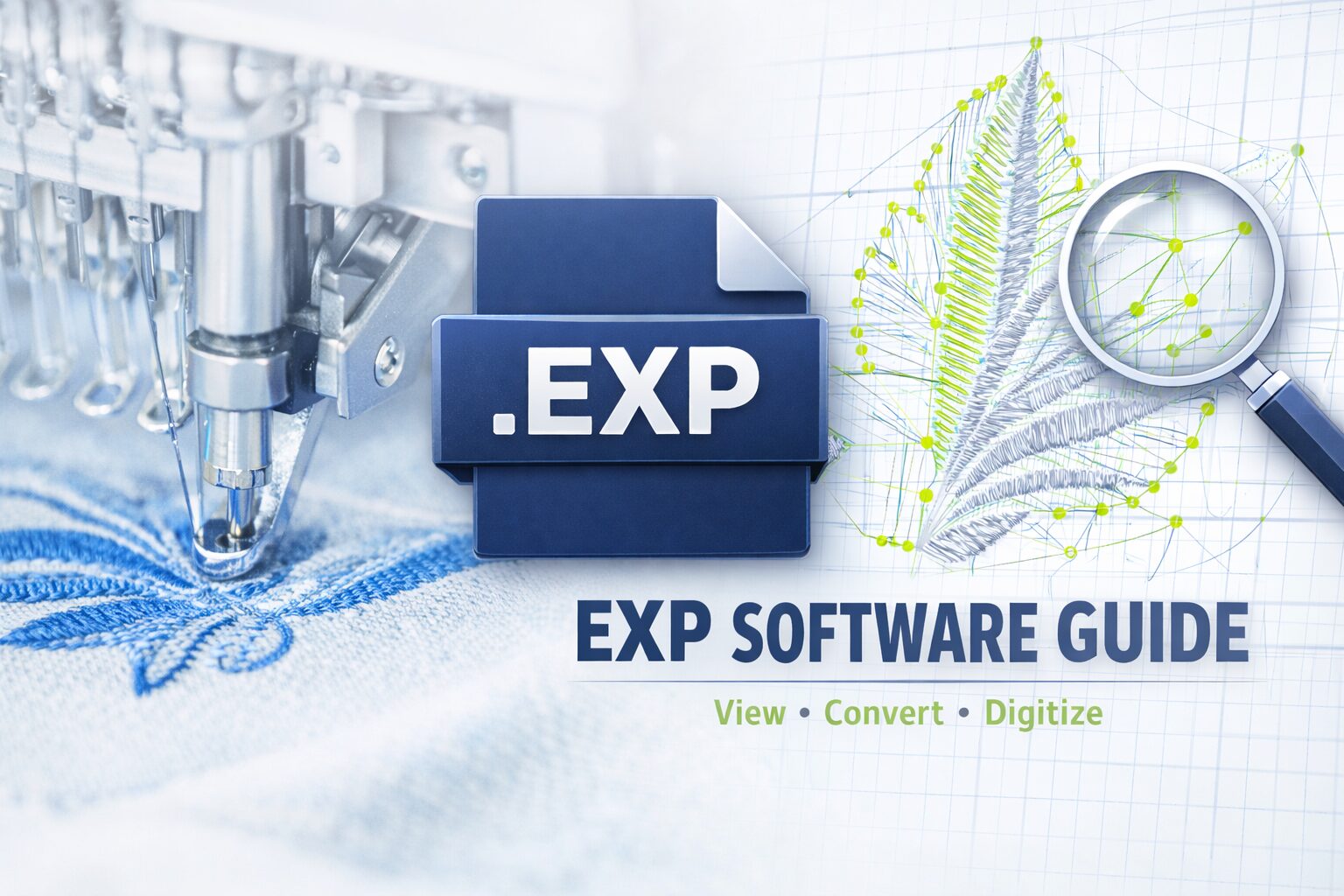
To change JPG to EXP file formats with precision, you need specialized software. Commercial powerhouses like Melco rely on this “universal commercial language” to execute high-precision designs.
If you’re managing a high-volume shop, understanding your EXP Software options is essential for a professional workflow. This software allows you to set “jump” commands and “trims” that a standard image converter simply cannot handle.
| Tool Name | Best For | Platform | Price | Link |
|---|---|---|---|---|
| Ink/Stitch | Free / Open Source Conversion | Win / Mac / Linux | Free | Visit Site |
| Melco DesignShop | Commercial EXP Outputs | Windows | Paid | Visit Site |
| Wilcom EmbroideryStudio | Industry Standard Digitizing | Windows | Paid | Visit Site |
| EZ Stitch Digitizing | High-Precision / Complex Logos | Online Service | Affordable | Get a Quote |
Frequently Asked Questions (FAQ)
Professional Digitizing Services
If your EXP embroidery file shows issues, we offer:
Custom embroidery digitizing
Design repair and optimization
Vector artwork conversion
📧 Email: info@ezstitchdigitizing.com
📘 Facebook: https://facebook.com/EZStitchDigitizing1
👉 Quote Form: https://ezstitchdigitizing.com/embriodery-digitizing-quotation-form/