
EZ Stitch
EZ Stitch
πŸ‘‘ STUDIO PRO

Drop DST File Here

or click below to browse

  • Instant 3D Preview (No Uploads)
  • Check Stitch Count & Colors
  • Zoom & Inspect Details

Or test with commercial demo files:

⚠️ Unable to Load File

Possible causes:
  • File is corrupted or incomplete
  • The .DST header is malformed
  • File is not a valid DST format
Contact Support

EMBROIDERY DIGITIZING QUOTATION FORM

Thank you for the QUOTATION request, We will contact at your email address soon!

About DST Viewer

Free Online DST Viewer

View Tajima .DST embroidery files instantly in your browser. No software installation required – 100% free, private, and works on any device.

How to Use This Tool

  1. Upload Your File: Click "Load New File" or drag and drop your .DST file onto the canvas
  2. View the Design: The 3D preview loads instantly – your file never leaves your device
  3. Zoom & Rotate:
    • Desktop: Left-click to Zoom In, Right-click to Zoom Out.
    • Mobile: Use the +/- buttons on the right to zoom. Swipe to scroll the page.
  4. Toggle 3D View: Enable realistic thread texture and lighting for a fabric preview
  5. Check Details: View stitch count, dimensions, colors, and estimated run time in the panel
  6. Change Colors: Select different thread palettes (Madeira, Wilcom, Random) from the toolbar

Key Features

πŸ”’ 100% Private Files processed locally in your browser – never uploaded
⚑ Instant Preview No waiting – designs load in seconds
πŸ“± Mobile Friendly Works perfectly on phones and tablets
🎨 Realistic 3D See exactly how your design will look stitched

Need Custom Embroidery Digitizing?

Professional digitizing services for logos, patches, and custom designs
Design Analysis

?

Design Quality Score

Based on stitch density, jump counts, and stability.

Detected Issues

  • Click "Analyze" to see report.

Density & Problem Map

Long (>7mm) High Density Jumps Micro (<0.5mm)< /span>
Studio Tools
0 Stops
Load a DST file to view sequences
Target: Stop 1
(Click swatch to assign)
0 active colors
(Colors used in design)
24 shades
No File Loaded Select a .DST file to inspect
πŸ•’

Recent Files Cache

Your last 3 opened designs are safely cached locally in your browser. Click Reload Design to instantly open any cached file without re-browsing.

    Design Details

    File-
    Width-
    Height-
    Stitches-
    Color Changes-
    Stops-
    Run Time-
    Trims-
    Thread Length-
    Bobbin Thread-

    🎁 Free Embroidery Samples

    Download our premium embroidery samples to test our digitizing quality.
    Note: Files are in .RAR format. Use WinRAR or 7-Zip to extract them.

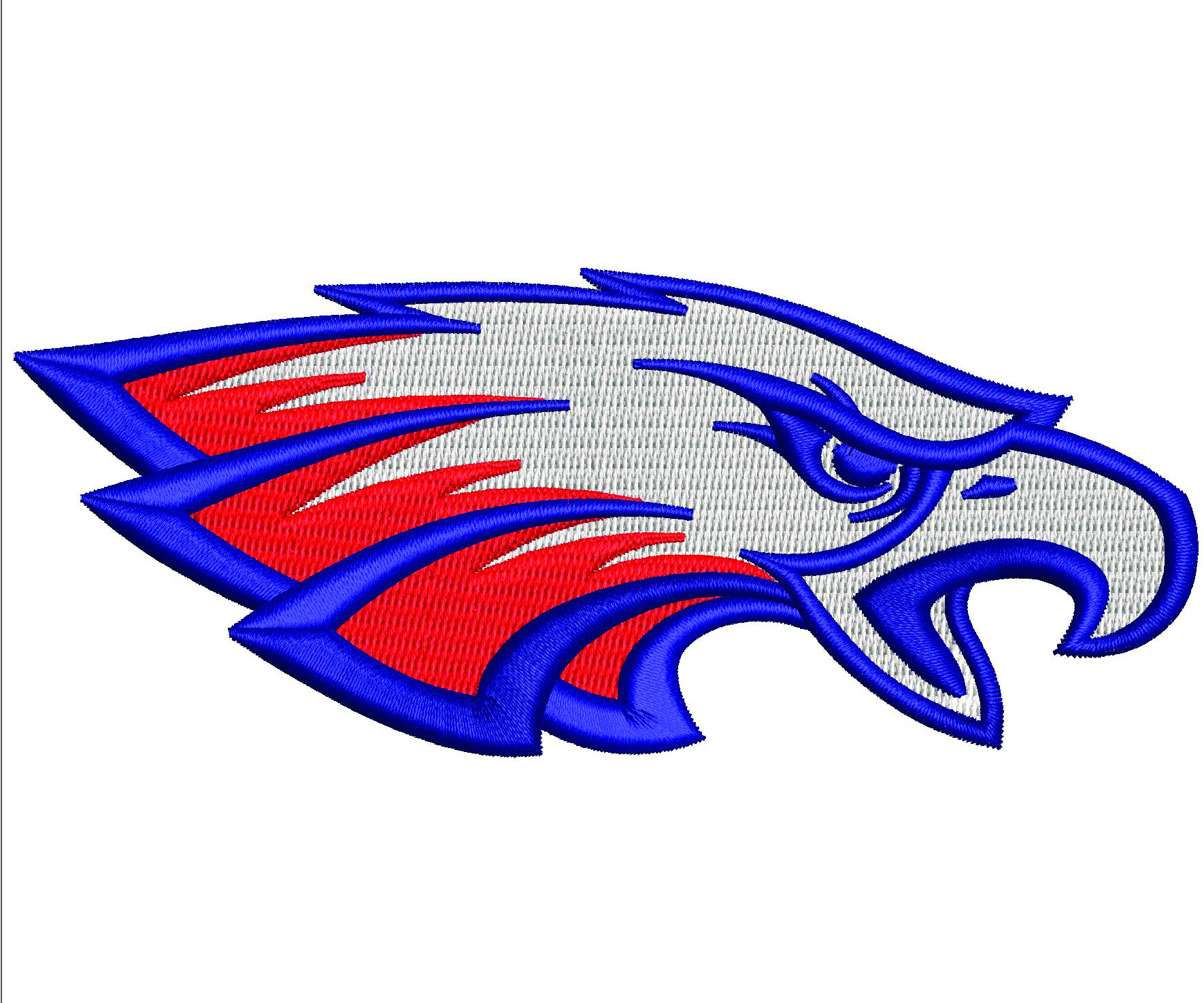
    Eagle Face Embroidery

    Eagle Face

    Download RAR
    Shark Embroidery

    Shark Design

    Download RAR
    Torress Embroidery

    Torress Logo

    Download RAR

    Need a Custom Design?

    Get a free quote for your logo digitization within minutes.

    ⚑ COMMERCIAL STUDIO PASS

    Unlock Studio Pro Pass

    Export modified production-ready DST files & generate technical PDF worksheets with Studio Pro or Lifetime All-Access.

    Starter Pro

    $9.99 / mo
    Billed Monthly β€’ Cancel anytime

    Flexible low-risk pass. Test all tools on your production embroidery machine.

    βœ“ Unlimited DST Binary Exports
    βœ“ Objects Tech Pack PDFs
    βœ“ πŸ’» 3 Workstations / Devices Included
    βœ“ 23 Built-in Shapes & 4 Fonts

    VIP Concierge

    $60 / mo
    Software + 5 Custom Files / mo

    Full software access PLUS 5 custom designs digitized or fixed every month!

    βœ“ Everything in Studio Pro
    βœ“ 5 Custom Designs / Month *(Left Chest / Cap)*
    βœ“ πŸ’» 3 Workstations / Devices Included
    βœ“ 24–48hr Senior Digitizer Turnaround
    πŸ’Ž NEVER PAY MONTHLY β€’ ONE-TIME PAYMENT
    Lifetime All-Access Pass — $399 (Pay Once, Keep Forever)

    Permanent access to modified DST exports, objects tech pack PDFs, Smart Density Guardβ„’, and future updates on up to 3 workstations with zero recurring fees.

    πŸ”’ Instant Key Delivery β€’ πŸ’» 3 Devices / Workstations per License β€’ 14-Day Money-Back Guarantee β€’ Stripe 256-Bit SSL
    Already subscribed? Enter License Key / Login
    πŸ”‘

    Studio Pro Member Login

    Enter your registered email and Studio Pro license key to unlock Studio Tools on this device.

    πŸ”’ Security Verification: Enter both your subscriber email and assigned license key.
    ⭐ VIP CONCIERGE SERVICE

    Submit Custom Design or Fix

    Senior digitizers create or repair your embroidery files with guaranteed machine runnability.

    Monthly VIP Allowance: 5 Designs / Repairs
    5 of 5 Available
    πŸ“
    Click to browse or drop your artwork file here
    Accepts JPG, PNG, PDF, AI, SVG, DST, PES, ZIP (up to 25MB)
    Direct email fallback: Send files directly with your license key to info@ezstitchdigitizing.com
    🧡

    Tajima (.DST) Color Information

    Physical Embroidery Machine Compatibility Guide

    πŸ’‘
    How Embroidery Machines Read .DST Files:
    The Tajima .DST format records physical stitch deltas and needle STOP changes, but does not embed RGB/Hex color codes. When loading your file into an embroidery machine, your Objects PDF Technical Worksheet serves as the physical thread sequence and color guide.
    ⚠️ Quality & Safety Disclaimer (Test Sew Required): Always run a complete test sew-out on scrap fabric with production-identical stabilizer and needles before commercial runs. Machine speed, tension balancing, needle selection, and garment outcome remain the sole responsibility of the embroidery machine operator. EZ Stitch assumes no liability for garment damage, needle breakage, or machine downtime.
    ⚠️

    Manual Digitizing Required for This Size

    Resizing an embroidery design beyond the safe Β±15% limit requires professional re-digitizing to protect your garments and embroidery machine.

    Original Design Size: β€”
    Requested Target Size: β€”
    Maximum Safe Automatic Resize: Β±15% Limit
    Why can't this be scaled automatically?
    Tajima .DST files contain pre-programmed needle coordinates. Scaling up more than 15% stretches satin stitches too wide (causing snagging and loose loops), while scaling down bunches stitches too tightly (causing needle breaks and fabric holes). Our master digitizers manually rebuild stitch paths, underlay, and density for perfect production.
    πŸ› οΈ

    Request Manual Digitizing Repair

    Need an expert digitizer to resize, fix stitch density, or digitize your design cleanly for production?

    Standard Logo
    $8
    Cap/Chest design up to 4.5" inches
    Unlimited Edits
    Pro Logo
    $15
    Front Chest design up to 8" inches
    Unlimited Edits
    Complex Design
    $20+
    Intricate Complex Jacket back design
    Unlimited Edits
    πŸ›‘οΈ

    Manage Studio Pass

    Are you sure you want to cancel your Studio Tools pass?

    ⚠️ Deactivating will lock:
    β€’ Modified binary Tajima (.DST) downloads β€’ Dynamic Smart Density Guardβ„’ auto-scaling β€’ Commercial PDF technical objects tech packs β€’ Custom lettering & patch creation tools
    Want to downgrade or change plans instead?
    Switch to a lower tier anytime without losing your saved preferences.
    πŸ’‘

    Studio Help & Quick Guide

    Everything you need to inspect, edit, scale safely, and export production embroidery files.

    ✨ 3-Step Quick Start
    1
    Drop or Create: Upload any Tajima .DST file, or click Create from Scratch to typeset lettering and patch shapes on the blank canvas.
    2
    Customize & Scale: Assign realistic thread colors from 40+ palettes (Madeira, Isacord). Safely scale with Smart Density Guardβ„’ (auto-recalculates needle penetration so stitches never bunch up or thin out).
    3
    Export & Stitch: Download clean .DST binaries ready for Tajima, Barudan, Brother, or Ricoma machines, or print a technical PDF worksheet.
    ⌨️ Keyboard Shortcuts
    Select & Transform Tool V
    Pan Canvas Tool H
    Hold to Pan Canvas Space
    Zoom Tool (Click / Alt+Click) Z
    Step Zoom In / Zoom Out + / -
    Fit View & Center Design 0 / R
    Delete Selected Object Del / Backspace
    Undo / Redo Last Change Ctrl + Z / Ctrl + Y
    Open & Browse New DST File O
    Open Help & Shortcuts Guide ?
    Close Modal / Dismiss Dialogs Esc
    πŸ–±οΈ Interactive Canvas Controls
    β€’ Select Tool (V): Click any text/shape to select and drag. Use corner handles to resize/scale.
    β€’ Pan Tool (H or Space): Click & drag to pan across canvas without selecting objects.
    β€’ Zoom Tool (Z): Click to zoom in, Alt + Click to zoom out.
    β€’ Right-Click: Quick zoom out anytime.
    β€’ Mouse Wheel: Smooth zoom in and out at cursor.
    Need Custom Digitizing or Design Repair?
    Our digitizers convert complex artwork and fix needle issues fast.
    🐞

    Report Bug / Request Feature

    Help our engineering team improve EZ Stitch Studio Tools.

    πŸ“Έ Screen / Canvas Snapshot
    Canvas Snapshot
    βœ… Current 3D design canvas auto-attached as evidence